End to End Example
Sample App
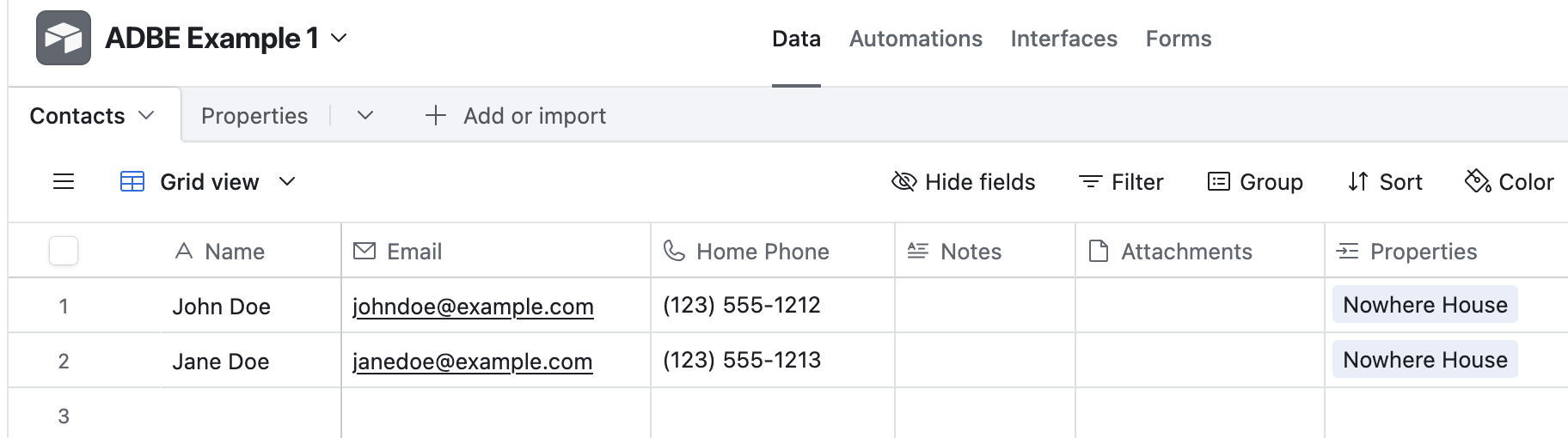
The best way to show what Airtable DB Export does is to show it. We have an astonishingly simple Airtable app for managing properties and residents:
A Contacts table with some basic fields about people:
A Properties table with an address and a link to Contacts as “Residents”
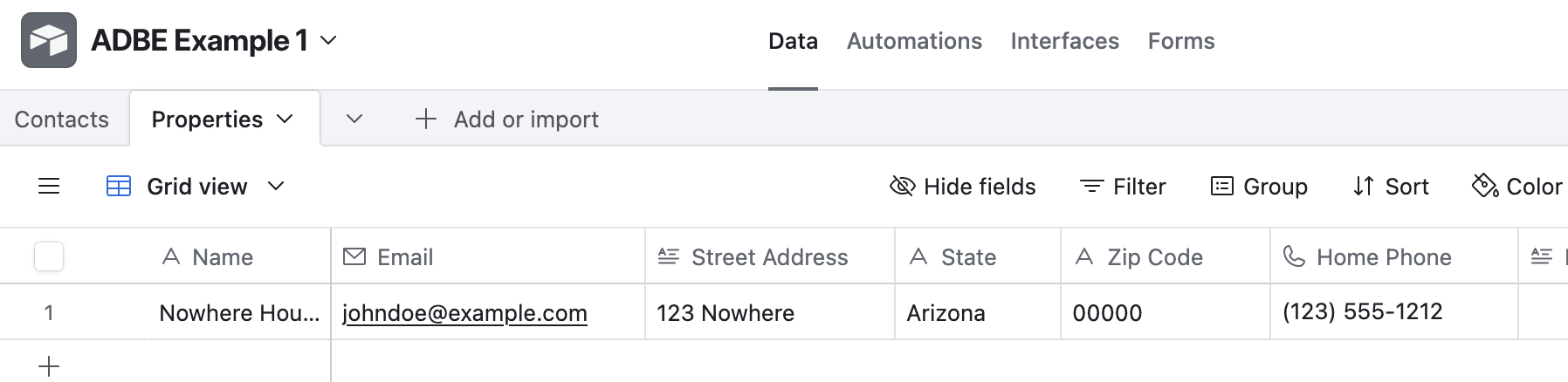
This will be tour sample app.
Setup
First we going to need an Airtable API token, which you can create at the Airtable Buider Hub. For you app you will need to create a token with base.readSchemas and data.reaedRows
The easiest way to use the API token in local development is to create a
.envfile in your repo (make sure it’s ignored by your source control) and add the token like:
AIRTABLE_API_KEY="<api token>"
Since this is a Python library, we’re going to assume you have a Python project with an environment already set up. If not, see Installation.:
.. code-block:: bash
$ pip install airtable-db-export $ adbe –no-config-file create-config adbe-config.yml
This installs Airtable DB Export and starts a local configuration file for your app. Open up abde-config.yml (the name is not itself important) in an editor and let’s see what the
command created.
# EXAMPLE Airtable DB Export config

# if set, generate all files relative to this directory (created, if it doesn't exist)
base_dir: generated

# name of the intermediate file that maps the actual Airtable schema to your
# configured SQL schema.
# Relative to base_dir.
schemas_file: schemas.json

# where to create downloaded JSON files
# Relative to base_dir.
datadir: data

# where to create the CREATE statement files for your new tables
# Relative to base_dir.
sql_dir: create_sql

# path to the generated database file.
# Relative to base_dir.
db_file: myapp.duckdb

# completely ignore Airtable fields matching these
# regular expressions
column_filters:
  - " copy$"

tables:
# NOTE: any tables that need to be related by ID need to come from the
# same Airtable base

# bases need to be identified by ID, found in the Airtable URL starting
# with "app"
- base: appRandomStringBaseID
  # tables can be identified by name
  airtable: My Table
  # name of the SQL table to create
  table: my_table
  # if true: only export and create the specified columns
  all_columns: false
  # mapping of Airtable fields to SQL column names
  # used to specify field names, otherwise column names will be
  # "cleaned", removing non-alphanumeric characters and replacing
  # spaces with underscores (_)
  columns:
    "Name": name
Update Config
We’re going to leave most of the simple options as they are in the generated config, and start updating the tables for our sample app.
- base: <app id>
  # add our first table
  airtable: Properties
  # name of sql table
  table: properties
  # mapping of Airtable fields to SQL column names
  # used to specify field names, otherwise column names will be
  # "cleaned", removing non-alphanumeric characters and replacing
  # spaces with underscores (_)
  columns:
    "Name": name
    "Street Address": street_address
    "State": state

- base: <app id>
    # tables can be identified by name
    airtable: Contacts
    # name of the SQL table to create
    table: contacts
Generate Schema Mapping
Now that we have our config, we’ll generate the schema mapping file. The file is
intermediary and is used by the create-sql and create-db commands.:
$ abde -c abde-config.yml generate-schema-map
Generating schema mappings to file: generated/schemas.json
Then take a look at the file:
[
  {
      "base": "app65Q3AdZDRc3C71",
      "airtable": "Properties",
      "sqltable": "properties",
      "columns": [
        {
            "field": null,
            "type": null,
            "sqlcolumn": "id",
            "sqltype": "varchar",
            "extra": "primary key"
        },
        {
            "field": "Name",
            "type": "singleLineText",
            "sqlcolumn": "name",
            "sqltype": "VARCHAR"
        },
        {
            "field": "Street Address",
            "type": "multilineText",
            "sqlcolumn": "street_address",
            "sqltype": "VARCHAR"
        },
        {
            "field": "State",
            "type": "singleLineText",
            "sqlcolumn": "state",
            "sqltype": "VARCHAR"
        },
        {
            "field": "Zip Code",
            "type": "singleLineText",
            "sqlcolumn": "zip_code",
            "sqltype": "VARCHAR"
        },
        {
            "field": "Home Phone",
            "type": "phoneNumber",
            "sqlcolumn": "home_phone",
            "sqltype": "VARCHAR"
        },
        {
            "field": "Notes",
            "type": "multilineText",
            "sqlcolumn": "notes_md",
            "sqltype": "VARCHAR"
        },
        {
            "field": "Residents",
            "type": "multipleRecordLinks",
            "sqlcolumn": "residents_ids",
            "sqltype": "TEXT[]"
        }
      ]
    }
  ]
Some notes on the file ABDW produced:
The first column defined has a null
fieldandtype; it’s an auto-generated ID field in which ADBE will store the Airtable recordId for each row.The “Notes” field (“notes” column) is a “multilineText” field, with the “Enable rich text formatting” option set. Airtable uses Markdown for rich text, so ADBE automatically appends “_md” to the SQL column.
Create SQL Files
To create the database ABDE can generate the SQL CREATE DDL for each new table.:
$ adbe -c abde-config.yml create-sql
Generate CREATE DDL
CREATE DDL complete
Now inspect the created files:
$ tree generated
generated
├── create_sql
│   └── create_properties.sql
└── schemas.json

1 directory, 2 files
Then create_properties.sql:
CREATE TABLE IF NOT EXISTS properties
(id varchar primary key,
name VARCHAR ,
street_address VARCHAR ,
state VARCHAR ,
zip_code VARCHAR ,
home_phone VARCHAR ,
notes VARCHAR ,
attachments VARCHAR ,
residents_ids TEXT[] );
…and create_contacts.sql:
CREATE TABLE IF NOT EXISTS contacts
(id varchar primary key,
name VARCHAR ,
email VARCHAR ,
home_phone VARCHAR ,
notes VARCHAR ,
attachments VARCHAR ,
properties_ids TEXT[] );
Create the Database
Run the command to create the DB:
$ adbe -c abde-config.yml create-db
db_file: /Users/sivy/projects/abde-test/generated/myapp.duckdb
Create database in generated/myapp.duckdb
generated/myapp.duckdb: creating properties
generated/myapp.duckdb: creating contacts
Then let’s look at the created database:
$ duckdb generated/myapp.duckdb
v1.0.0 1f98600c2c
Enter ".help" for usage hints.
D describe properties;
┌────────────────┬─────────────┬─────────┬─────────┬─────────┬─────────┐
│  column_name   │ column_type │  null   │   key   │ default │  extra  │
│    varchar     │   varchar   │ varchar │ varchar │ varchar │ varchar │
├────────────────┼─────────────┼─────────┼─────────┼─────────┼─────────┤
│ id             │ VARCHAR     │ NO      │ PRI     │         │         │
│ name           │ VARCHAR     │ YES     │         │         │         │
│ street_address │ VARCHAR     │ YES     │         │         │         │
│ state          │ VARCHAR     │ YES     │         │         │         │
│ zip_code       │ VARCHAR     │ YES     │         │         │         │
│ home_phone     │ VARCHAR     │ YES     │         │         │         │
│ notes          │ VARCHAR     │ YES     │         │         │         │
│ attachments    │ VARCHAR     │ YES     │         │         │         │
│ residents_ids  │ VARCHAR[]   │ YES     │         │         │         │
└────────────────┴─────────────┴─────────┴─────────┴─────────┴─────────┘
D

D describe contacts;
┌────────────────┬─────────────┬─────────┬─────────┬─────────┬─────────┐
│  column_name   │ column_type │  null   │   key   │ default │  extra  │
│    varchar     │   varchar   │ varchar │ varchar │ varchar │ varchar │
├────────────────┼─────────────┼─────────┼─────────┼─────────┼─────────┤
│ id             │ VARCHAR     │ NO      │ PRI     │         │         │
│ name           │ VARCHAR     │ YES     │         │         │         │
│ email          │ VARCHAR     │ YES     │         │         │         │
│ home_phone     │ VARCHAR     │ YES     │         │         │         │
│ notes          │ VARCHAR     │ YES     │         │         │         │
│ attachments    │ VARCHAR     │ YES     │         │         │         │
│ properties_ids │ VARCHAR[]   │ YES     │         │         │         │
└────────────────┴─────────────┴─────────┴─────────┴─────────┴─────────┘
D
Download Airtable Data
With the database created and ready, we can now download the data from Airtable. ABDE currently exports data as traditional JSON (suport for NDJSON and YAML are planned):
$ adbe -c abde-config.yml download-json
Downloading data from Airtable...
Loading data from Base: app65Q3AdZDRc3C71 Table: Properties...
Saving data to properties.json...
Downloading data complete
$ ls -lah generated/data
total 16
drwxr-xr-x@ 4 sivy  staff   128B Jul 25 20:48 .
drwxr-xr-x@ 6 sivy  staff   192B Jul 25 20:48 ..
-rw-r--r--@ 1 sivy  staff   646B Jul 25 20:48 contacts.json
-rw-r--r--@ 1 sivy  staff   322B Jul 25 20:48 properties.json
We can open the properties.json file in an editor to see the data as Airtable provides it:
[
  {
    "id": "recLnyAmUBfpGZzci",
    "name": "Nowhere House",
    "street_address": "123 Nowhere",
    "state": "Arizona",
    "zip_code": "00000",
    "home_phone": "(123) 555-1212",
    "notes": null,
    "attachments": null,
    "residents_ids": [
      "recB6rO5XGk1qptsU",
      "recpphYuTBSL9KwNP"
    ]
  }
]
Load Database
Finally, we can load the data into our database:
$ adbe -c abde-config.yml load-db
Load database
And check the results:
$ duckdb generated/myapp.duckdb
v1.0.0 1f98600c2c
Enter ".help" for usage hints.
D select name, email, home_phone from contacts;
┌──────────┬─────────────────────┬────────────────┐
│   name   │        email        │   home_phone   │
│ varchar  │       varchar       │    varchar     │
├──────────┼─────────────────────┼────────────────┤
│ John Doe │ johndoe@example.com │ (123) 555-1212 │
│          │                     │                │
│ Jane Doe │ janedoe@example.com │ (123) 555-1213 │
└──────────┴─────────────────────┴────────────────┘
D
D select name, street_address from properties;
┌───────────────┬────────────────┐
│     name      │ street_address │
│    varchar    │    varchar     │
├───────────────┼────────────────┤
│ Nowhere House │ 123 Nowhere    │
└───────────────┴────────────────┘